

👁️ Team visibility
Choose which people can discover and use an agent, daemon, schedule, MCP provider, or shared skill source.
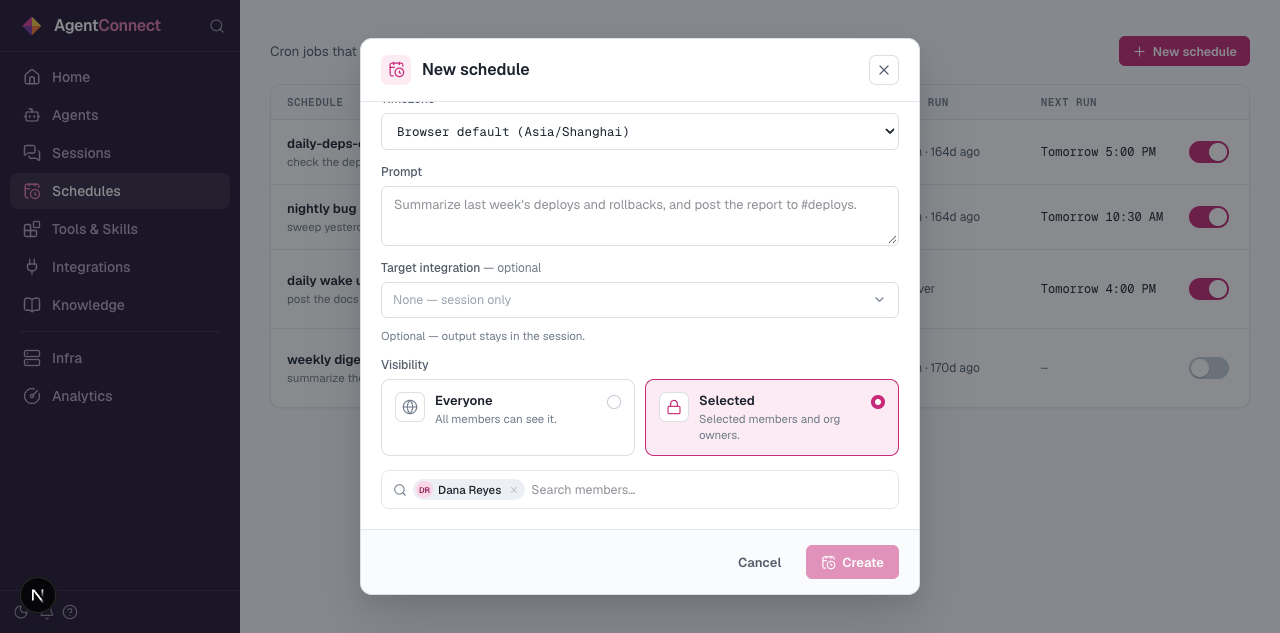
Team visibility controls which people may reach a resource. It is separate from Agent visibility, which controls which agents may call one another. New resources are visible to the whole organization by default. Selected limits access for Collaborators and Viewers while keeping resources accessible to organization Owners.
Setting visibility
Supported create and edit surfaces have a Visibility or Team visibility field:
- Everyone means every organization member may see the resource.
- Selected means the current organization members you select, plus every organization Owner, may see it.
Selected must always retain at least one explicitly selected current organization member. Owners can view and edit the resource even when they are not selected. Removing an Owner from the selection does not remove their role-based access. A member's role still decides whether access is read-only or editable.
Anyone who can edit a resource can also change its audience. A selected Collaborator may therefore share it onward; a selected Viewer remains read-only.
When a member leaves
AgentConnect removes a departing member from every Selected audience. Resources remain Selected, and AgentConnect keeps at least one current member explicitly selected.
Resources with their own visibility
The following resources have independent visibility:
- Agents
- Daemons
- Schedules
- MCP providers and OpenConnector connections
- Shared skill sources
Agent and daemon visibility are independent. A member may be allowed to see an agent without being allowed to see its hosting daemon. They cannot place or move an agent onto a daemon they cannot see.
Other resources derive access from a parent. Integrations, webhooks, and workspace operations follow their Agent; schedule configuration and run history follow the schedule; daemon keys follow the daemon. Bots are organization-wide infrastructure and do not have their own Selected audience.
Analytics gives Owners complete organization-wide usage attribution. For Collaborators and Viewers, attribution requires access to both the Agent and the Session.
Sessions have their own audience: metadata, transcripts, tool details, relationships, and live updates can remain readable even when the owning Agent is hidden. Owner access to a resource does not grant access to its private or provider-restricted sessions.
What a restricted agent changes
A restricted Agent disappears from Agent lists and pickers, its detail and configuration surfaces, workspace operations, invocation controls, and Analytics attribution for unselected Collaborators and Viewers. Organization Owners retain access.
Sessions produced by that Agent do not disappear solely because the Agent is restricted. A member who passes a session's audience can still read its metadata, transcript, tool details, relationships, and live updates. The console may show the Agent's name as a plain session label or filter, but never as a link; that context grants no access to the Agent itself.
Its chat integrations are also conversation-gated. Newly discovered channels and direct messages start Off. An editor must enable each conversation from the agent's integration card before the agent responds there. Enabling a channel trusts that channel's current and future membership; it is not a per-person allowlist.
Existing channels keep their configured trigger when an agent is changed from Everyone to Selected. Known direct messages switch Off, so review the integration card after tightening visibility.
What team visibility does not control
Team visibility is separate from:
- Roles, which decide what a person may do;
- Session visibility, which can make one transcript private;
- Agent visibility, which controls the agent-to-agent collaboration graph; and
- runtime permission mode, repository access, and provider app scopes.
Updated 2 days ago