

💬 Slack
Install the built-in AgentConnect Slack app in one click, or connect a custom app when an agent needs its own identity.
On AgentConnect Cloud, the recommended path is the built-in Add to Slack app. You approve the workspace installation; AgentConnect completes the OAuth flow and connects it without asking for an App manifest, token, signing secret, or callback URL.
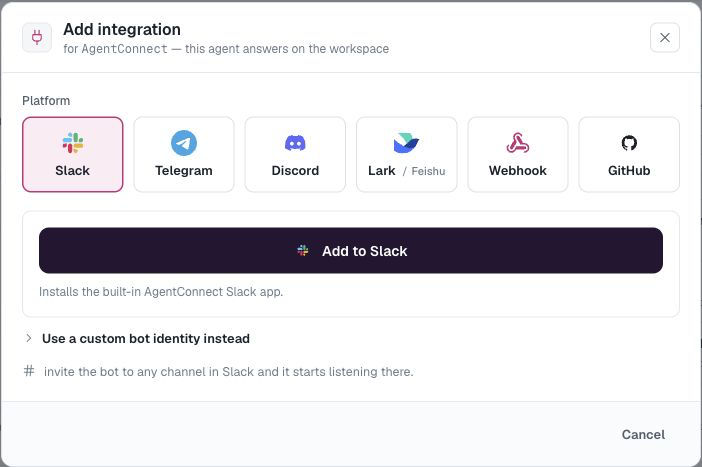
Add AgentConnect to Slack on Cloud
The built-in Slack app belongs to the built-in agentconnect agent — the preset agent AgentConnect creates for every organization. Place that agent on a daemon and choose its runtime and model first, then use either entry point:
- open the Getting started card and choose Add to Slack; or
- open the
agentconnectagent, then Integrations → Add integration → Slack.
Click Add to Slack, choose the workspace, and approve the requested permissions. The console waits for Slack and closes the setup automatically when the bot is ready. AgentConnect recommends one bot identity per agent, so the installation initially serves only the built-in agent.
Use it
Invite the bot to a channel:
/invite @your-botMention it to start a conversation; unmentioned follow-ups stay in the thread the agent already joined. The bot also answers direct messages.
Each discovered channel appears on the agent's Integrations card. Choose @-mention (the default), any message, or Off for inbound activation. Off does not uninstall the app or block scheduled and delegated outbound posts. See In-conversation commands for stopping, cancelling, queuing, and changing session settings from Slack.
What an agent can do in Slack
Replying is not all an agent can do in a Slack session. It also gets Slack's own surface as tools, and reaches for them on its own when the task calls for one:
- Read the room — a channel's recent messages, a thread's replies, and a search of the workspace's public messages.
- React — add an emoji reaction to a message, or read the reactions already on one.
- Leave something behind — pin and unpin channel bookmarks, create and edit canvases, and read and update Slack lists.
- Reach further — open a direct message, start a conversation, share a file, and schedule a message for later.
These are injected only into sessions on Slack. The same agent working on another platform does not carry them; Discord and Lark / Feishu offer channel history, and Telegram reads attachments only. Everything an agent does this way is done as the bot, and shows up in the transcript like any other tool call.
Give an agent a custom Slack identity
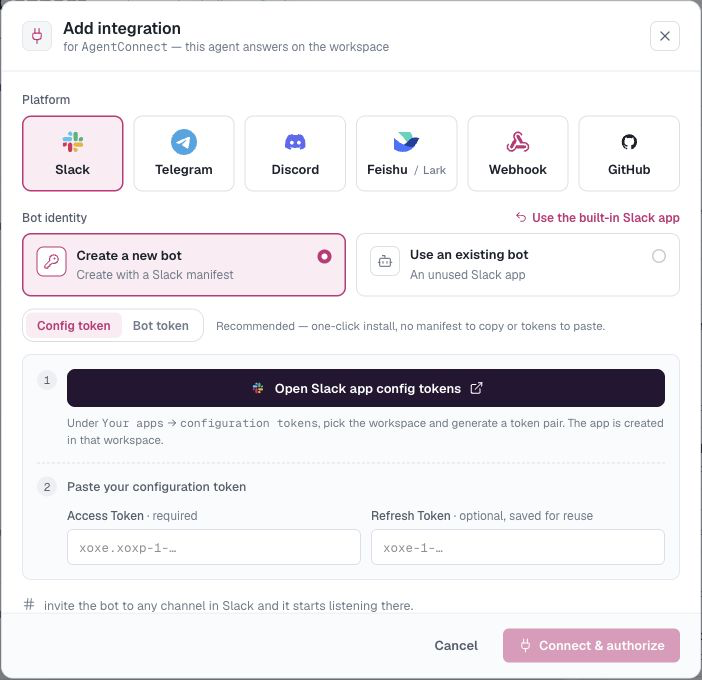
On the built-in agent, choose Use a custom bot identity instead when it needs a dedicated Slack App. Other agents open the custom-identity flow directly. This is also the normal path when a self-hosted deployment does not publish a built-in app.
Configuration-token install
This is the recommended custom-app path. If you have not saved a Slack configuration token yet, AgentConnect links to Slack's configuration-token page. Paste the access token (xoxe.xoxp-…) and its refresh token (xoxe-…) so AgentConnect can rotate it; an access token saved alone expires after roughly 12 hours. Slack scopes the pair to one user and workspace. AgentConnect saves it for that signed-in user, who can replace or clear it under Your profile → Slack config token.
Name the App, click Create & install, and approve it in Slack. With HTTP (Events API) delivery, AgentConnect captures the bot token and signing secret and finishes without credential copy-and-paste. With Socket Mode, Slack still requires you to generate one App-Level token with connections:write and paste the resulting xapp-… token.
Manifest install
Use the manual fallback when you cannot create Slack configuration tokens:
- Choose Copy manifest & open Slack, then create and install the App from the copied manifest.
- For HTTP, paste the Bot User OAuth token (
xoxb-…) and signing secret. - For Socket Mode, paste the Bot User OAuth token and an App-Level token (
xapp-…) withconnections:write.
If Slack reports changed scopes, reinstall the App once before copying the Bot User OAuth token.
Keep the app's permissions current
Slack grants permissions when the app is installed, so a release that adds a capability can leave an existing installation short of a scope. AgentConnect names the ones that are missing instead of failing quietly: open Settings → Bots → Slack and use Refresh Slack app on the bot's row.
- When AgentConnect can update the app for you, it syncs the manifest and asks you to reinstall the workspace so Slack grants the added scopes.
- When it cannot — a manifest install, or an app AgentConnect does not administer — it points you at the app's OAuth & Permissions page in Slack to add the listed scopes, then reinstall.
A built-in installation is repaired from the same row: AgentConnect starts the reinstall for you and waits for Slack to confirm it.
Delivery modes and self-hosting
- HTTP (Events API) is the Cloud default. Inbound callbacks enter through the AgentConnect Relay and go directly to the owning daemon. HTTP is required for a sharable bot.
- Socket Mode is a daemon-owned outbound connection. It needs no Relay or public callback URL and is limited to one agent per bot.
Self-hosted deployments show the built-in Add to Slack path only after the operator configures the deployment Slack App. Otherwise, use a custom App. HTTP is available only when the deployment has a public, connected Relay; without one, use Socket Mode.
Use one Slack app with multiple agents
AgentConnect generally recommends one bot identity per agent. If your team deliberately wants one Slack identity to behave differently across channels, make the bot sharable and dispatch each channel to a different agent:
- Open Settings → Bots → Slack and turn on Sharable for the bot.
- On each additional agent, choose Integrations → Add integration → Slack → Use an existing bot and select it.
- Back in Settings → Bots, expand the bot and choose each channel's Default dispatch agent.
See One Slack app with different agents by channel for the full pattern.
Updated 22 days ago