

👾 Discord
Create a Discord application, paste its bot token, and use AgentConnect's ready-made server invite.
The daemon connects to Discord's gateway outbound — no public endpoint required.
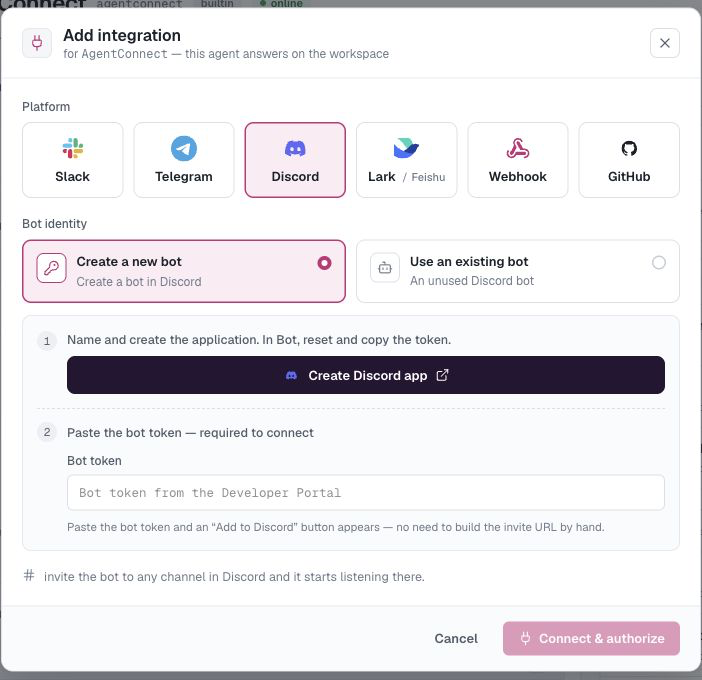
Create the bot
- Open the Discord Developer Portal → New Application, name it.
- Under Bot, copy the token (Reset Token if none is shown).
Connect it
On your agent, open Integrations → Add integration → Discord and paste the token. AgentConnect decodes the public application ID from it and shows Add to Discord with the required bot and applications.commands scopes and permissions, including public-thread creation.
Click Add to Discord, choose the server, approve the invite, then click Connect.
When you connect, AgentConnect validates the token and enables the limited Message Content Intent on the Discord application automatically. You no longer need to turn on that checkbox before setup. If Discord refuses the automatic update, AgentConnect stops before saving the integration and tells you to enable Bot → Privileged Gateway Intents → Message Content Intent manually.
Use it
Mention the bot in a server channel it can see and it answers; longer conversations continue in threads. You can also send it a direct message. AgentConnect registers its in-conversation commands as native Discord slash commands.
Notes
- If automatic Message Content setup was rejected, enable the intent manually in the Developer Portal and connect again.
- If the bot cannot reply or create a thread, use Settings → Bots → Discord → Add to Discord to reinstall it with the current scopes and permissions.
- One Discord bot binds to one agent; deleting the integration frees the bot for reuse.
Updated 22 days ago