

🛠️ Manage daemons
Monitor daemon health, maintain services, move agents safely between machines, and run agents on AgentConnect Cloud.
Daemons lists the machines connected to your organization. Open one to inspect its health, available runtimes, resources, hosted agents, capabilities, and visibility.
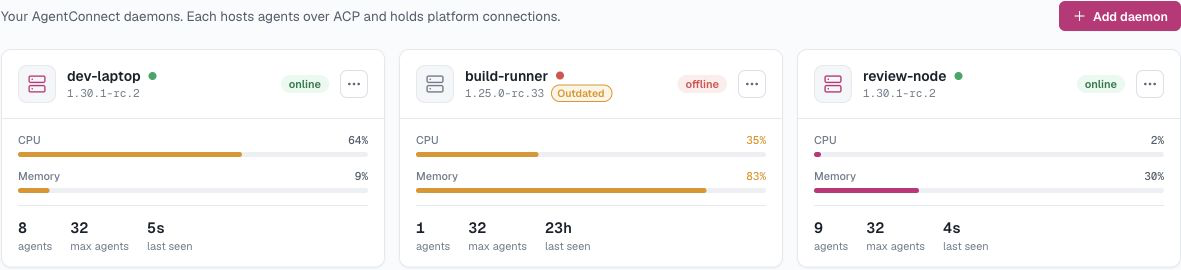
Status
| Status | Meaning |
|---|---|
| Online | Connected; agents are reachable |
| Offline | Disconnected; agents are unavailable |
Transcripts owned by an offline daemon cannot be fetched until it reconnects.
A restart or upgrade appears as Restarting or Upgrading until the daemon is ready again.
Actions
Restart and upgrade use the ordinary daemon edit permission: any Owner or Collaborator who can see the daemon may run them. Viewers cannot.
- Restart (online daemons) — drains work and asks the service supervisor to relaunch the same version.
- Upgrade (online daemons) — installs a selected release, drains and relaunches, then health-checks the result. A failed upgrade rolls back when possible. The entry point is the Update to <version> badge on an outdated daemon. See Upgrade the daemon for channels, host-side upgrades and rollback.
- Reconnect (offline daemons) — mints a fresh one-time token and shows a command to run on that host. Its identity and agent placements are preserved.
- Delete (offline daemons) — removes the daemon and revokes its keys. Its agents are left unplaced and inactive, so they stop responding until you place them on another daemon. The local process and files remain on the machine until you stop or remove them there.
Placement
Every agent placed on a daemon you connected runs on that one machine — it owns the agent's workspace, runtime processes and transcripts. You can move an agent from its Configuration tab when both sides are online, ready and compatible with its runtime, model and MCP servers. To let an agent survive one machine going down, place it on a daemon group (experimental) instead.
A move cold-reprovisions the saved agent definition; it does not migrate daemon-local workspace, memory or transcript bytes. Commit or back up local work first, and expect GitHub workspaces to be cloned again on the target.
AgentConnect Cloud
On AgentConnect Cloud, the daemon picker offers one entry that is not one of your machines: AgentConnect Cloud. Place an agent there and it runs on infrastructure managed by AgentConnect — no machine to prepare, no runtime to install or sign in, no provider API keys. Model access is included, with a curated set of runtimes and models, and each agent runs in its own isolated environment.
On the Daemons page this appears as a single Cloud entry; open it to see the agents placed there and recent credit activity. Unlike a machine you connect, a Cloud placement is not tied to one machine: the agent's workspace, memory and transcripts live in its managed environment, which AgentConnect may serve from different capacity over time. Cloud placements and your own machines coexist in one organization; moving an agent between them is a cold reprovision like any other move — the agent is recreated from its saved definition, and existing workspace, memory and transcript content stays behind.
Pricing
Cloud is usage-based. Placing an agent there costs nothing by itself — you pay for the model usage of its sessions:
- Model usage is priced at the model provider's published API rates — the same as calling the provider's API directly, with no markup. When a provider changes its published prices, Cloud rates change with them.
- Usage is deducted from your organization's prepaid credit balance. Owners add credits on the Billing page. See Billing & usage for the balance, the ledger, and the Analytics view behind it.
- Running out pauses Cloud work. When the balance is exhausted, Cloud placements stop taking new model traffic until credits are added. There is no overage billing.
Agents on daemons you connect yourself are never billed: they use the provider credentials configured on those machines, and their model traffic flows directly between your machine and your provider.
Session retention
Each daemon has an Expire sessions setting: choose a common window, enter a custom number of days, or keep sessions indefinitely. It controls how long that daemon keeps finished transcripts and session worktrees. The Control Plane keeps session metadata after the content expires. See Session retention and cleanup for what remains visible.
Troubleshooting
- Stuck “Waiting for daemon…” in Add daemon — the command probably failed in your terminal. Check that Node is ≥ 24.12 (
node -v) and that the machine can reach your control-plane URL over HTTPS/WSS. - Daemon shows offline but the process is running — check the log (
npx -y @agentconnect.md/cli statusprints its path, default~/.agentconnect/logs/daemon.log). Repeatedconnect/handshake failedusually means the key was revoked — use Reconnect for that daemon, or onboard a new one if it was deleted. - Runtime missing from the pickers — check the daemon user's runtime installation and saved login. For microsandbox, the runtime must also be installed in the selected image. Use the Host / Sandbox switch in Runtimes to check each environment (required sandboxing shows only Sandbox).
- Run in sandbox is unavailable — check the selected backend's requirements and daemon log. SRT needs its host tools and user namespaces; microsandbox needs KVM and vsock access. See Sandboxing.
Updated 2 days ago