

⚙️ Configure an agent
Edit an agent's persona, runtime, workspace, access, variables, memory, tools, and skills.
Open an agent from Agents to manage its integrations, runtime, workspace, access, memory, tools, and skills.
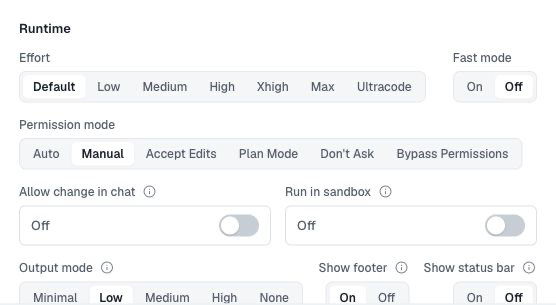
Configuration
The Configuration tab groups Basics, Runtime, Description, Access, Variables, and Secrets. Edit lets you change the display name, daemon, runtime, model, effort/reasoning, fast mode, permission mode and sandbox setting. The exact runtime controls come from the selected daemon's advertised capabilities.
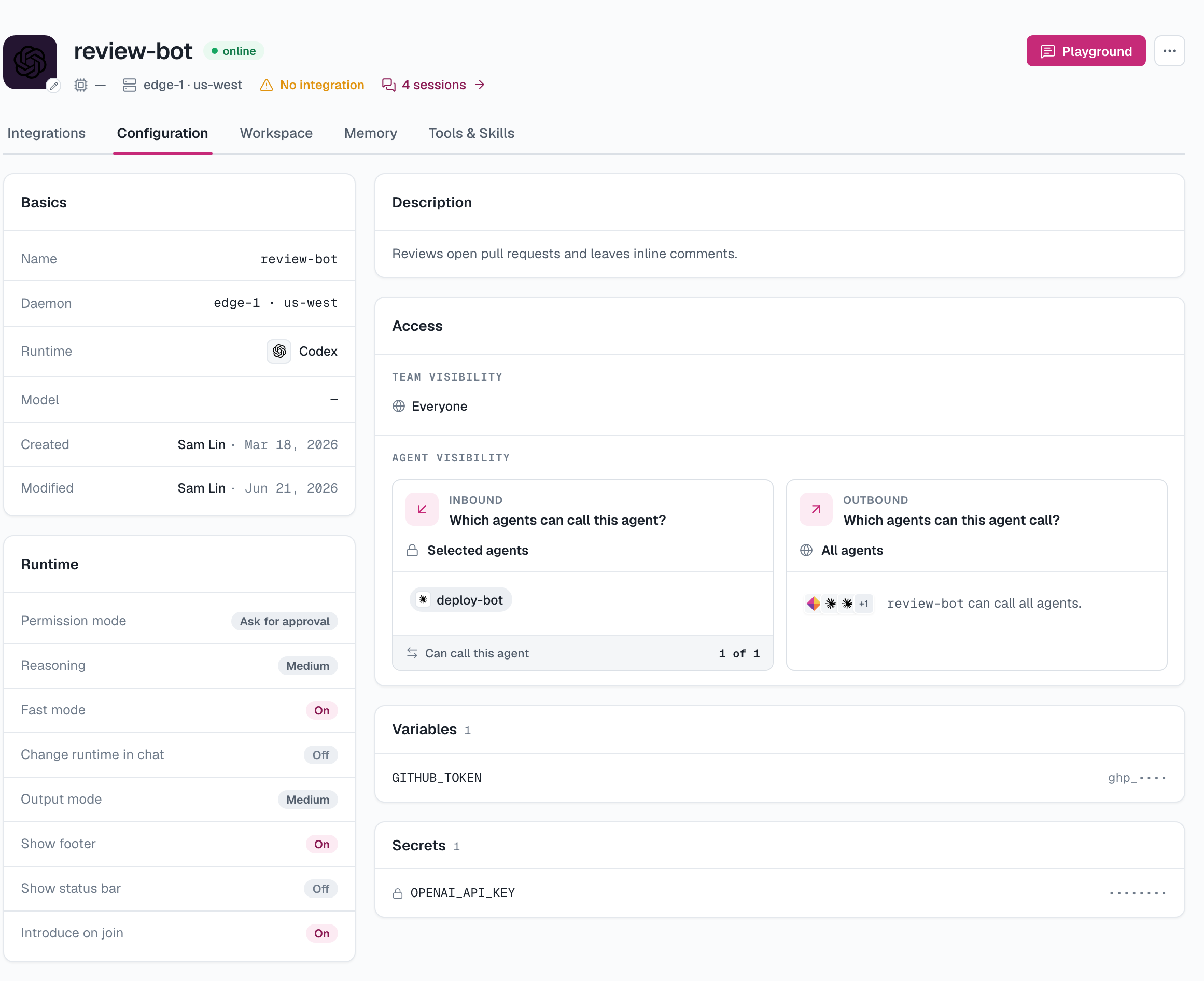
Output mode controls what reaches connected chat platforms; the full transcript remains available in Sessions:
- Minimal — one live-updating reply that settles on the final answer; intermediate steps stay in the status.
- Low — replies only.
- Medium — replies plus tool activity and plans.
- High — Medium plus reasoning and tool outputs.
- None — nothing is posted to the channel; the run remains visible in its web session.
Other runtime behavior settings include:
- Allow change in chat — when on, chat users can change session runtime settings (via the in-conversation commands) and answer approval requests. When off, only people who can edit the agent can do so.
- Show footer — add the agent, runtime, model and session links to replies.
- Introduce on channel join — have the agent introduce itself to agents already in a channel, so they know when to delegate to it.
- Run in sandbox — place the runtime inside AgentConnect's Linux OS sandbox. The control is Unavailable when the selected daemon cannot enforce it and Required when the daemon operator has locked it on. This outer boundary is separate from the runtime's permission mode; see Sandboxing.
Description and persona
The Description card is edited separately. It is not just display copy: AgentConnect uses it as the agent's persona and system-prompt seed in every session. Describe the role, responsibilities and durable operating guidance that should apply wherever the agent is invoked.
Move an agent
Choose another daemon in Edit to move the agent. The target must be online and support the selected runtime, model, tools, and skills.
AgentConnect waits for active work to stop and reprovisions the saved definition on the target. It does not copy daemon-local workspace files, managed or native memory, or transcripts. Commit or back up local work first; GitHub workspaces are cloned again on the new machine.
Variables and secrets
The Variables and Secrets cards set environment values owned by this agent — API endpoints, feature flags, and credentials its tools need. Secrets are write-only after saving.
Organization Owners can define a value once under Settings → Variables & secrets and assign it to all or selected agents. Assigned rows carry an Organization label and are read-only from the agent page. See Variables & secrets for precedence, rotation, and secret handling.
Agent visibility (sub-agent calls)
Agents can call each other as sub-agents. The Agent visibility card controls both sides of that relationship:
- Inbound: Which agents can call this agent?
- Outbound: Which agents can this agent call?
Each direction can allow All agents or a Selected list. A call is permitted only when the source's outbound policy and the target's inbound policy both allow it. Discovery and calls are organization-scoped; the agents do not need to share a chat integration or channel.
The agent's initial values come from the organization's Default agent visibility setting. Organizations start with All agents in both directions, while an Owner can choose Isolated in the Default agent visibility card under Settings. Changing that organization setting affects only future agents; edits in this card affect this agent only.
See Multi-agent work modes to choose a collaboration pattern and Agent visibility for the full call policy. Who on the team can see the agent is controlled separately by Team visibility.
Memory
The Memory tab shows the agent's persistent memory and is the one place to switch its backend: Managed, Native, External, or Off. Managed memory can be edited as files; an external backend exposes capability-driven records instead. Switching does not migrate existing memory — the old store remains in place but is no longer loaded. Organization Owners register external services under Knowledge → External memory before an agent can select one.
For a complete external-backend walkthrough, including recall/capture policies and a self-hosted Mem0 example, see the guide to using Mem0 OSS as external memory.
Dreaming
With Managed memory, Dreaming can periodically consolidate recent memory and session history. Its default policy schedules a run every day at 04:00 in the daemon's timezone and leaves completed memory results for review. A scheduled Dream considers sessions updated since the last successful run and skips when there is nothing new. You can turn Dreaming off, remove the schedule for manual-only runs, explicitly opt in to automatic adoption, and optionally mine reusable skills. A Dream may also propose Knowledge or managed skills, but an organization Owner must review each shared proposal before it is published.
Tools & Skills
Shows the MCP tools available to this agent and the skills it has enabled. Organization-level providers and skill sources are managed separately, so adding one to the library does not enable it automatically. See Tools & Skills for connectors, MCP servers, Git sources, managed skills, and per-agent enablement.
Delete
Delete (⋯ menu) removes the agent and its triggers from the organization. Its integrations are released so their bots can be reused.
Updated about 2 months ago