

🎭 Shared Slack bot routing
Use one shared Slack identity while each channel dispatches to an agent with its own model, instructions, workspace, and trigger.
A shared Slack bot lets one Slack App serve several AgentConnect agents. People invite and mention one bot identity, while AgentConnect sends each channel to the agent configured as that channel's default dispatch.
This is useful when different channels need different models, repositories, tools, or behavior without installing a separate Slack App for every agent.
This is contextual routing from Multi-agent work modes: one inbound message selects one agent rather than broadcasting to all of them.
| Slack conversation | Default dispatch | Trigger | Example role |
|---|---|---|---|
#engineering | engineering-agent | any message | Implementation and repository work |
#security | security-agent | @-mention | Threat analysis and sensitive reviews |
#support | support-agent | any message | Product questions and issue triage |
Before you start
You need:
- two or more online agents;
- permission to create or install a Slack App in the workspace.
On AgentConnect Cloud, Relay-backed Slack delivery is already available. Shared bots use HTTP (Events API); a Socket Mode bot is daemon-owned and cannot be shared across agents.
AgentConnect OSS operators should configure public Relay URLs before creating the App.
1. Create the channel-specific agents
Create one agent for each behavior you want. Configure its model, instructions, workspace, tools, and permissions on the agent page.
Keep the differences in the agents themselves. Avoid one large prompt that branches on channel names; the shared bot's channel routing should choose the already-specialized agent.
For example:
engineering-agentuses a coding model with write access to the main repository;security-agentuses a stronger reasoning model with read-only access and a security-focused prompt; andsupport-agentuses a fast model with product documentation tools.
2. Make the Slack bot sharable
AgentConnect Cloud
Start with the built-in app:
- On the built-in
agentconnectagent, choose Integrations → Add integration → Slack → Add to Slack and approve the workspace installation. Skip this step if it is already connected. - Open Settings → Bots → Slack.
- Turn on Sharable for the built-in AgentConnect bot.
The Cloud app already uses HTTP delivery, so there is no callback URL, signing secret, or transport to configure.
Custom app or self-hosted deployment
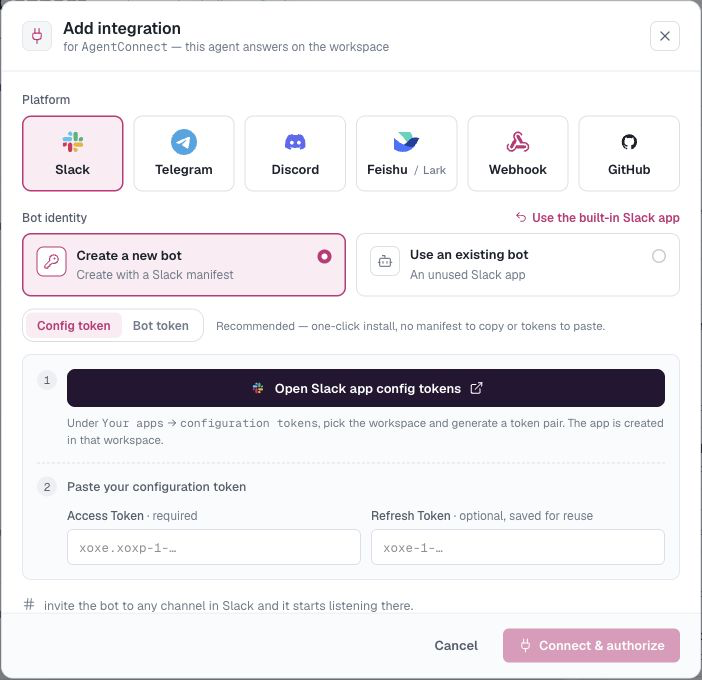
On the first agent, open Integrations → Add integration → Slack:
- Create a Slack App using a configuration token or the manifest flow.
- Set Delivery to HTTP (Events API).
- Enable Shared bot — let multiple agents use this one bot.
- Complete the Slack installation and connect it to the agent.
With the configuration-token flow, AgentConnect captures the signing secret automatically. With the manifest flow, paste the bot token and signing secret shown in the Slack App settings.
Invite the App to every channel it should serve:
/invite @your-botThe channels appear in AgentConnect after Slack reports the bot's membership.
3. Connect the same App to the other agents
For each remaining agent:
- Open Integrations → Add integration → Slack.
- Choose Use an existing bot.
- Select the shared bot you created.
- Connect it to the agent.
Do not create another Slack App. Every connected agent now uses the same Slack bot identity and credentials, while running on its own daemon placement.
4. Assign each channel
Open Settings → Bots → Slack and expand the shared bot. For each channel, choose its Default dispatch agent.
Then set the channel trigger from any connected agent's Slack integration. The trigger belongs to this shared bot and channel, so AgentConnect replicates the same effective setting across every member-agent row:
- @-mention — run only when the bot is mentioned; unmentioned follow-ups continue in a thread the agent already joined.
- any message — run the default agent for every message in that channel.
- Off — mute all inbound routing for this shared bot in the channel, even for mentions, existing threads, and fallback to a sibling or default agent. Restricted agents also start Off until an editor enables the conversation.
Every active shared-bot channel has exactly one default dispatch agent. Changing the owner in the Console preserves the channel's trigger.
How routing behaves
- The channel's default dispatch and trigger select the agent for a new message.
- Once a thread is assigned, unmentioned follow-ups stay with that agent.
- Replies use the same Slack App identity. When the response footer is enabled, it identifies the actual AgentConnect agent, runtime, and model.
- An agent never re-triggers itself: AgentConnect drops each agent's own message at the point it would come back in.
An unaddressed new message in a channel picks one agent — the channel's default dispatch. A shared bot is routing several channel-specific agents behind one identity; it is not a broadcast that makes every agent answer.
If people deliberately bring another shared-bot agent into the same thread, both agents keep their own sessions and configurations. Use agent visibility when those agents should also delegate directly to one another.
Troubleshooting
| Symptom | Check |
|---|---|
| Sharable is unavailable | Use HTTP delivery with a live Relay; Cloud is preconfigured |
| A channel is missing | Invite or re-invite the bot; wait for membership sync |
| The wrong agent answers | Check Default dispatch and the channel trigger |
| Follow-ups use the previous agent | Start a new thread or switch the session agent |
See Slack for installation details and Configure an agent for models, prompts, workspaces, and permissions.
Updated about 2 months ago