

🪽 Lark / Feishu
Connect a Lark or Feishu bot with one-click or manual setup.
AgentConnect Cloud and self-hosted deployments support international Lark and China-region Feishu as separate regional choices in the same setup flow.
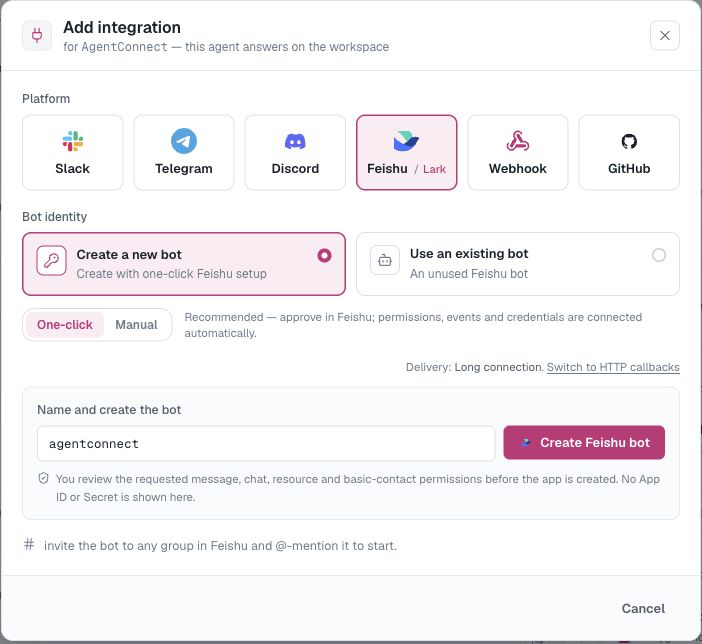
Cloud supports both bot integrations. Lark / Feishu social sign-in and Follow Feishu / Lark access currently require a self-hosted deployment.
Each agent bot may use its own platform App ID. The deployment keeps one regional Login App as a tenant anchor, so it can admit multiple bot Apps from the same trusted workspace without requiring their App IDs to match. When Follow Feishu / Lark access is enabled, AgentConnect checks a session's current chat membership through that session's installed bot App. See Lark and Feishu identities for the self-hosted identity setup.
The recommended setup creates a self-built app through the platform's official authorization flow and connects its permissions, event subscription, and credentials automatically.
Connect in one click
The agent must already be placed on a daemon that reports Lark / Feishu support.
- On the agent, open Integrations → Add integration and select the Lark / Feishu tile. One tile covers both; a switcher on it picks the region.
- Keep One-click selected and choose Lark (international) or Feishu (China).
- Keep Long connection unless you deliberately want Relay-backed HTTP callbacks.
- Name the bot and click Create Lark bot or Create Feishu bot.
- In the new platform tab, review and approve the app and its requested permissions.
AgentConnect follows the authorization in the original dialog. Once approved, it receives the App ID and secret server-side, configures the message event, stores the credentials, and connects the integration. You do not copy either credential into the browser.
Choose a delivery mode
- Long connection is the default. The daemon opens an outbound connection to Lark / Feishu, so it needs no public callback URL.
- HTTP callbacks enter through the AgentConnect Relay and are forwarded directly to the owning daemon. The option appears only when the deployment has a public, connected Relay. One-click setup configures the callback security and request URL for you.
For most Cloud users, leave the default Long connection selected. Delivery choice does not change which agent runs or where its workspace and session transcript live.
Manual self-built app
Choose Manual when the official one-click flow is unavailable or your organization requires you to configure the app yourself.
- Select the Lark or Feishu region and create a custom app in the linked developer console.
- Enable the app's Bot capability, then copy its App ID and App Secret into AgentConnect.
- Grant the message, chat, resource, and basic contact-read scopes shown in AgentConnect's setup checklist. The contact scopes let channel and participant names appear instead of opaque IDs.
- Under Event Subscriptions, subscribe to
im.message.receive_v1:- for Long connection, choose the platform's Long Connection delivery;
- for HTTP callbacks, paste the Verification Token and optional Encrypt Key into AgentConnect, connect the integration, then save the displayed Request URL in the developer console.
- Publish the app version, then add the bot to the chats where it should work.
The manual checklist remains visible in the integration dialog so you can verify the transport-specific settings before finishing.
Use it
- In a group, add the bot and @-mention it to start. The channel then appears on the agent's Integrations card, where you can choose @-mention, any message, or Off.
- In a one-to-one chat, message the bot directly.
- Use the in-conversation commands to stop, cancel, queue, or inspect a session.
One Lark or Feishu bot binds to one agent at a time. Deleting its integration frees the stored bot identity for Use an existing bot; it does not delete the app from the platform developer console. Organization-wide management lives under the matching Settings → Bots → Lark or Feishu tab, where Configure opens the correct regional developer console.
Updated 22 days ago