

✨ Create an agent
Create an agent with the right runtime, workspace, access, memory, tools, variables, and secrets.
An agent combines a focused role with a runtime, model, workspace, memory, tools, permissions, and machine. You can then connect it to conversations, repositories, schedules, and webhooks.
Open Agents → Add agent:
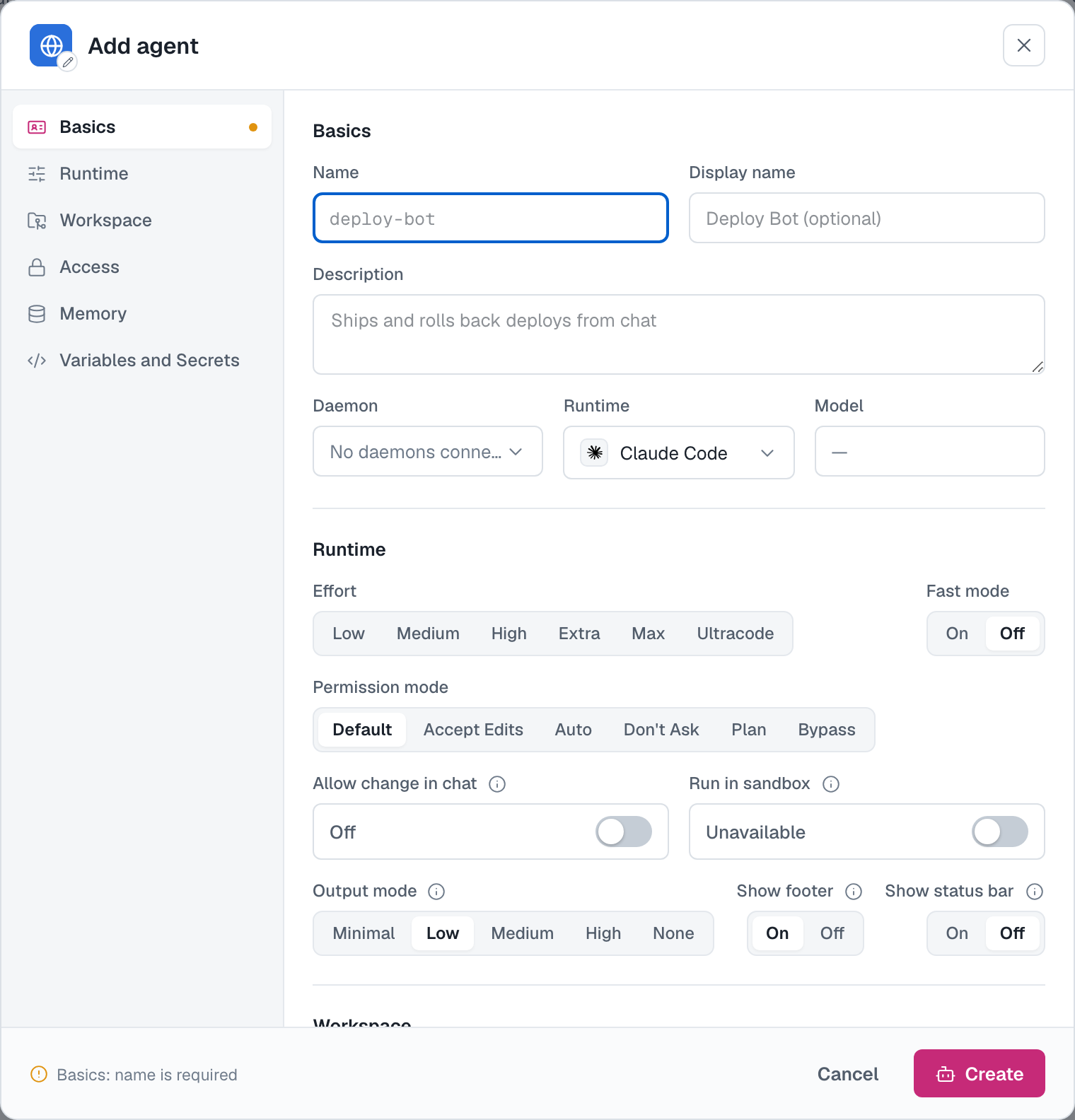
Role and basics
- Description — the agent's persona and standing responsibilities. AgentConnect includes it in the agent's system context for every session and also shows it on the agent page.
- Name — a slug (
deploy-bot); lowercase letters, digits and dashes. It's the stable identifier. - Display name — optional pretty name ("Deploy Bot") shown across the console.
Placement & runtime
- Daemon — where this agent runs: a machine you connected (online daemons are listed first) or, on AgentConnect Cloud, AgentConnect Cloud — managed infrastructure with model access included, priced by usage. You can move the agent later, but existing workspace, memory and transcript content is not carried over to the new placement.
- Runtime — which AI coding tool drives the agent: Claude Code, Codex, or anything else your daemon detected (opencode, Gemini, …). The list is exactly what the daemon reported — if a runtime is missing, install it on that machine first.
- Model — the models the runtime reports. AgentConnect preselects the runtime's advertised default, or its first advertised model; it does not invent a separate Default model.
Behavior (runtime-dependent)
These appear when the selected daemon and runtime advertise support. Exact choices and descriptions can change with the runtime version:
- Effort (Claude Code) or Reasoning (Codex) — how much thinking the agent puts in. The levels come from the runtime itself, so read them off the picker rather than from a list here; they change as the runtime does.
- Fast mode — On / Off; the runtime's faster-output mode where available.
- Permission mode — how much the runtime may do without asking. Available modes, including Auto, are runtime-defined and can vary by runtime and version. Use the picker descriptions as the source of truth, and start conservative for agents on shared channels; you can change the mode later per agent or Playground session.
- Run in sandbox — place the runtime inside AgentConnect's Linux OS sandbox when the selected daemon supports it. This outer OS boundary is separate from the runtime's permission mode. See Sandboxing.
- Memory — Managed (an AgentConnect-managed directory), Native (the runtime's own isolated memory), External (a configured provider such as Mem0), or Off. See the guide to using Mem0 OSS as external memory for setup.
MCP servers are not part of this dialog. Create the agent first, then enable them from its Tools & Skills tab — the only place MCP access is granted. See Tools & Skills.
Workspace
Where the agent's files live on the daemon:
- From scratch — a fresh working directory. Files the agent creates live only on that machine.
- From GitHub — clone a repository and branch, optionally scoped to a subdirectory, with read-only or read-write credentials. New GitHub agents use an isolated worktree for each session by default. Details in Workspaces & repositories.
You can change the workspace source later from the agent's Workspace tab. Changing source, repository or branch replaces daemon-local workspace files, so commit or back up anything you need first. See Workspaces & repositories.
Access
- Team visibility — Everyone lets all organization members see the agent. Selected grants access to the current organization members you pick and every organization Owner. You are selected initially for convenience, but you may replace yourself after selecting someone else. At least one member must remain explicitly selected; removing an Owner from the selection does not remove their role-based access. See Team visibility.
- Agent visibility — independently choose which agents may call this agent and which agents it may call. New agents inherit the organization's creation default in both directions. That setting starts as All agents, while an Owner may choose Isolated for future agents. You can override either direction here before creating this agent. See Agent visibility.
Variables and secrets
The final Variables and Secrets step adds environment values owned by this agent. Organization entries configured for All agents also apply when the agent is created and normally take precedence over same-name local values. See Variables & secrets for organization sharing, precedence, and secret handling.
Click Create. You'll land on the agent page — next steps:
- Try it in the Playground
- Add an integration so it answers in a channel
- Fine-tune its configuration
Updated 2 days ago