

👥 Members & roles
Invite teammates and choose what Owners, Collaborators, and Viewers may do.
Everything in AgentConnect belongs to an organization. Membership is the outer authorization boundary: a person must belong to the organization before any role or visibility rule can grant access.
Signing in creates your profile, not an organization. A new account lands on Create your organization, where you choose a URL name (lowercase letters, digits, and hyphens) and an optional display name that defaults to it. If a teammate sent you a collaborator invite link, open that link instead and you join their organization rather than creating one.
Use the organization switcher to move between organizations you belong to.
Members
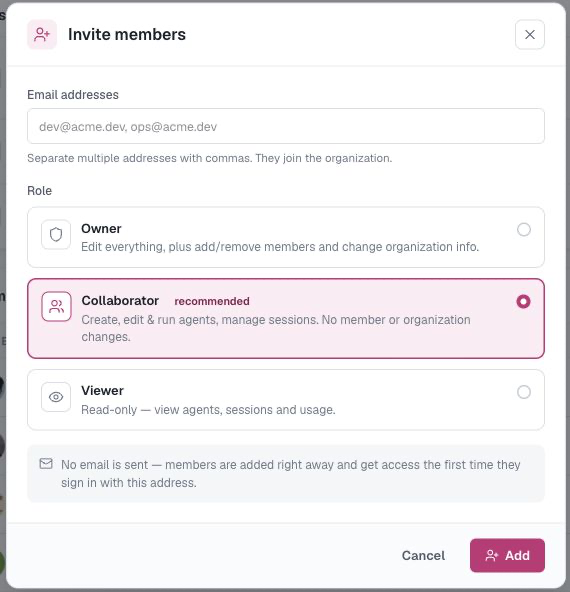
Settings → Members & roles lists everyone in the organization. Owners can:
- add a member by email and choose a role;
- generate or revoke the organization's collaborator invite link;
- change a member's role; and
- remove a member.
An organization must always have at least one Owner, so its last Owner cannot be demoted or removed.
Roles
| Owner | Collaborator | Viewer | |
|---|---|---|---|
| See team resources | All organization resources | Everyone or explicitly selected | Everyone or explicitly selected |
| Read sessions and transcripts allowed by their session audience | ✓ | ✓ | ✓ |
| Read organization-wide usage totals | ✓ | ✓ | ✓ |
| See complete Analytics attribution | ✓ | — | — |
| Create resources and edit resources they can see | ✓ | ✓ | — |
| Talk to an agent they can see in the Playground | ✓ | ✓ | ✓ |
| Start a scheduled run with Run now | ✓ | ✓ | — |
| Change sharing on resources they can edit | ✓ | ✓ | — |
| Install or sync the GitHub App and manage organization bots | ✓ | ✓ | — |
| Uninstall a GitHub App installation | ✓ | — | — |
| Manage members, roles, and organization settings | ✓ | — | — |
Organization Owners can view, edit, and change sharing on every team resource, including resources whose Selected list does not include them. Collaborators and Viewers need access through Team visibility.
When a member leaves or is removed, AgentConnect removes them from every Selected audience and keeps at least one current member explicitly selected for each resource.
Session visibility applies independently to every role. A Private session is visible only to its matched owner; organization Owners must also pass provider audience checks to read provider-restricted sessions.
Owners can see complete Analytics attribution, including usage from sessions they cannot read. Collaborators and Viewers receive attribution only for Agents and Sessions they can access, with the rest included in organization totals as unattributed usage.
Collaborators can change the audience of any resource they are allowed to edit. This includes sharing it with more members or switching it back to Everyone. Share sensitive resources only with collaborators you trust to manage that audience.
Viewers are read-only for configuration: they cannot create, edit, or delete team resources. Two exceptions are intentional, and both matter when you choose who to make a Viewer:
- A Viewer may change the visibility of a session whose owner identity matches them.
- A Viewer can talk to any agent they can see, from the Playground. That starts a real run on the daemon with the agent's full configuration behind it — its tools, MCP servers, repository access, and secrets. The Viewer cannot change how the agent is configured, but they can use it. Restrict a sensitive agent with team visibility rather than relying on the Viewer role to keep people away from it.
Your profile
The avatar menu → Your profile shows your name, email, role, and membership date. You can edit your display name there. It also hosts personal API keys and any social sign-in methods available on your deployment.
Updated 2 days ago